 Is Now Vyapar TaxOne | Same Trust, New Name!
 AI Weapon for Financial Soldiers
Vyapar TaxOne


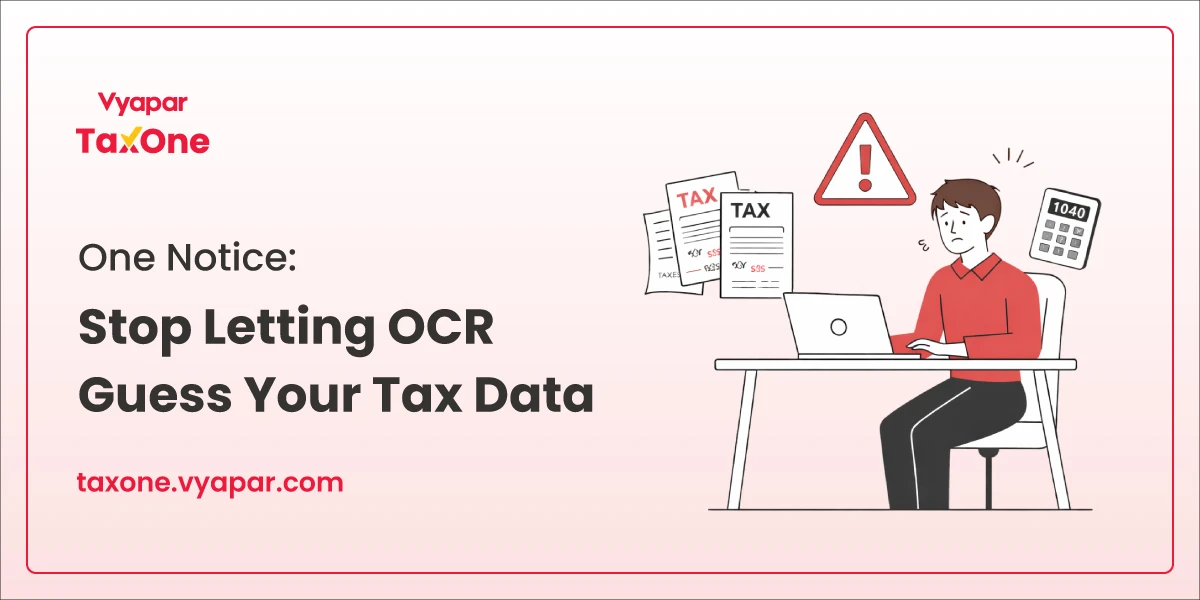
Poor document quality costs tax professionals hours of manual correction and exposes your practice to costly errors in accounting automation.
Scanning at 300 DPI, controlling brightness, and straightening documents before processing reduces OCR errors by over 5% and eliminates nearly all character misinterpretations that plague invoice processing.
You're not losing money because OCR is bad. You're losing it because your documents are.
Here's what's happening right now in most accounting practices: invoices arrive crumpled, faxes come in at 150 DPI, handwritten notes sit beside printed text, and suddenly your automation tool can't tell the difference between a zero and the letter O.
A single misread invoice number like "O00123" read as "000123" cascades into ERP mismatches, delayed payments, and frustrated vendors.
The data is brutal: 59% of accountants make several errors per month, with 33% making "at least a few" financial errors weekly. Yet nearly all of this is preventable. The gap isn't between good tools and bad ones. It's between professionals who understand their documents and those who don't.
Modern OCR technology achieves 98–99% accuracy for printed text when documents are appropriately prepared. The problem isn't the technology. It's that most accounting firms treat scanning as an afterthought rather than a process.
Getting consistent, accurate results means treating document preparation as a core competency, not a quick step. Here's the framework that works:
Resolution is your first control point. 300 DPI is the industry standard for optimal accuracy. This gives OCR engines enough detail to recognize letter shapes without distortion.
Why it matters: Documents scanned below 200 DPI blur or blend text, forcing the OCR engine to guess. At 300 DPI, fine details, like the tail of a "g" or the serifs in formal fonts, remain sharp and recognizable.
Real impact: Scans at 150 DPI produce character error rates above 2%; at 300 DPI, character error rates drop below 1%. For tax documents where every digit counts, this is the difference between compliant records and problems.
Action: If your scanner allows, set the default to 300 DPI. For small fonts (below 10pt), increase to 400–600 DPI. For larger, standard invoices, 300 DPI is sufficient and keeps file sizes manageable.
A tilted document throws off the entire OCR process. Even a slight skew confuses character recognition algorithms.
Why it matters: OCR reads left-to-right, top-to-bottom. When text is angled, the algorithm miscalculates character boundaries, leading to merged letters, skipped words, or transposed numbers.
Real example: An invoice tilted 5 degrees might render "INV-2025" as "INV-2C25." The OCR engine sees the misalignment and misinterprets characters.
Action:
Brightness is where most scanning goes wrong, yet it's easily fixed.
Why it matters: Overexposed scans (too bright) wash out text and background distinction, underexposed scans (too dark) blur characters and introduce shadow artifacts. Both force OCR to work harder and guess more.
Real impact: Properly balanced brightness can improve accuracy by 3–5% on the same document.
Action:
Dust, smudges, creases, and stains are invisible problem-makers.
Why it matters: A small smudge on a "5" makes it look like an "8." A crease across a date field splits "2025" into unreadable segments. Faded ink or watermarks introduce noise that OCR engines struggle to filter out.
Real scenario: Scanned faxes often come with "phantom marks", artifacts from the faxing process. These appear as random lines or gray areas that confuse character recognition.
Action:
If you're creating templates or requesting documents from clients, font choice directly impacts OCR accuracy.
Best fonts for OCR: Times New Roman, Arial, Verdana, Helvetica, Calibri, Tahoma.
Why: These fonts have clear character distinctions. Sans-serif fonts (such as Arial and Calibri) are easier for screen OCR. Serif fonts (Times New Roman) work better for printed documents.
Avoid: Script fonts, decorative fonts, or custom fonts. These have irregular shapes that confuse algorithms.
Real impact: A properly formatted invoice in Arial at 12pt has near-perfect OCR accuracy. The same invoice in a script font drops accuracy by 10–15%.
Action:
Here's the uncomfortable truth: OCR alone doesn't prevent errors in accounting automation. It extracts text. But extraction isn't validation.
Consider this scenario:
OCR handles 30% of the equation to prevent errors. The rest depends on:
This is where modern accounting automation platforms like Vyapar TaxOne add real value.
They combine OCR data extraction with intelligent validation, matching invoices against internal records, flagging anomalies, and routing exceptions to you for review, not asking you to fix OCR errors after the fact.
Here's what happens when you implement this framework:
| Metric | Without Protocol | With Protocol | Improvement |
|---|---|---|---|
| Character Error Rate | 2–3% | 0.8–1% | 65% reduction |
| Manual Review Time | 4–5 hours per 100 invoices | 1–1.5 hours per 100 invoices | 70% faster |
| Errors in Accounting Automation | 4–6 errors per 100 transactions | 0–1 error per 100 transactions | 85% reduction |
| Rework Cost (per batch) | $300–500 | $50–100 | 80% savings |
| Vendor Payment Delays | 2–3 days | Same-day processing | Eliminates delays |
For a mid-sized accounting firm processing 500 invoices monthly, this difference is 20–25 hours saved, plus the elimination of the hidden costs of errors in accounting automation.
Tax compliance is unforgiving. A single misread TDS amount, GST calculation error, or invoice date mistake triggers audit flags and potential penalties.
When you reduce errors in accounting automation by 85%, you're not just saving time. You're:
This is especially critical if you manage clients across multiple jurisdictions or industries with strict invoicing standards (like healthcare, finance, or government contracting).
Here's what we see at most firms: They invest in expensive automation platforms, set up OCR extraction, and then spend more time fixing errors than they would have spent processing invoices manually.
The missing step is discipline in document preparation.
Automation amplifies garbage. Good data flows smoothly; bad data creates bottlenecks. The firms that win aren't using fancier tools; they're using their existing tools on clean data.
Clean, reliable data is the real advantage in accounting automation. When your scans are sharp and OCR-friendly, your team spends time on clients and tax strategy, not fixing imports.
Firms that win don't just buy better software; they build better document habits. They scan at 300 DPI, straighten pages, and quickly validate key fields before posting.
Tools like Vyapar TaxOne then handle the heavy lifting, automating clean data and routing only valid exceptions for human review.
Think of it as a small daily habit with a big payoff: invest 15 minutes in scanning discipline, save 20+ hours in rework later. Put this framework in place now, and within weeks you'll notice fewer errors, smoother reconciliations, and a much calmer month-end.
OCR errors corrupt critical fields like invoice numbers, dates, and tax amounts, which then flow straight into your accounting system. Even a 1–2% character error rate can create multiple incorrect transactions when you process invoices at scale.
Yes. Below 200 DPI, characters blur, and OCR accuracy drops sharply, especially for small fonts and tables. Scanning at 300 DPI or higher typically cuts recognition errors by more than a third and gives far cleaner data for automation.
Firms that standardize on resolution, alignment, and brightness often see 60–80% fewer data-entry corrections in automated workflows. That translates into several hours saved per 100 invoices and far fewer compliance-risk mistakes.

Tax Professional & Business Finance Expert
Tax Professional & Business Finance Expert
Tax Professional & Business Finance Expert