How to change Password
Follow this step-by-step guide to update your Vyapar TaxOne account password through the Profile settings. Includes screenshots and instructions for a smooth password change process.
Here’s the step-by-step FAQ for changing your password in Vyapar TaxOne:
1. Go to Profile Settings
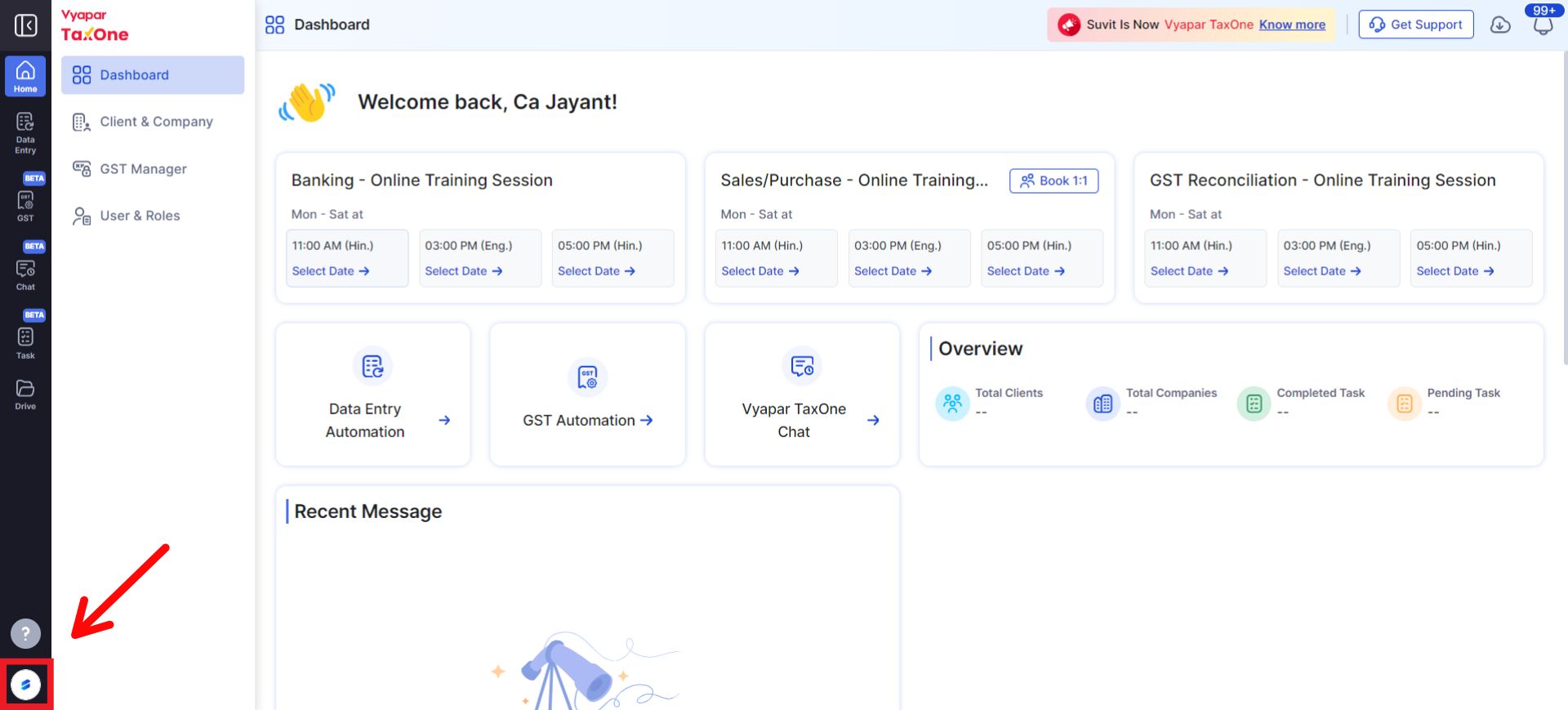
2. Access the Change Password Option
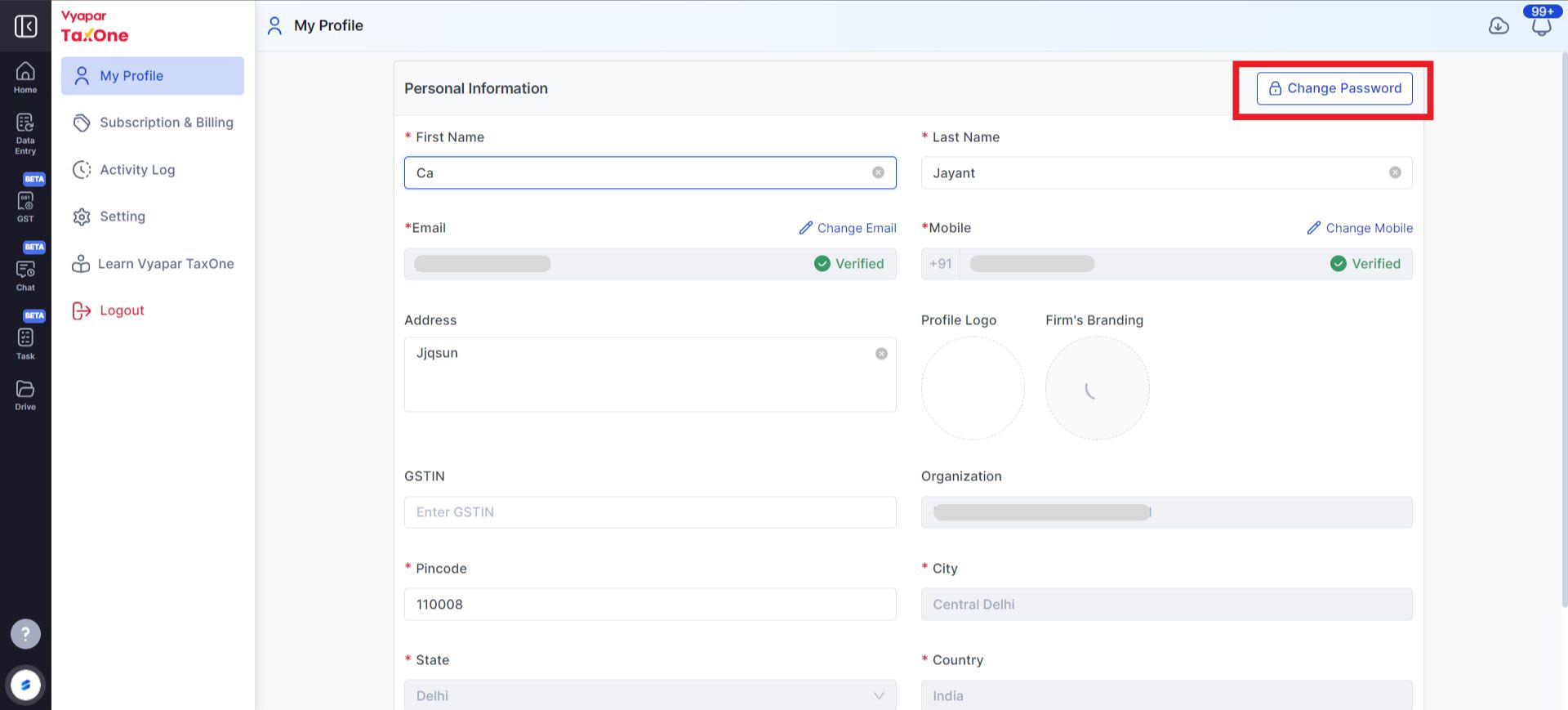
- Within the profile settings, click on the "Change Password" button.
3. Enter Current Password
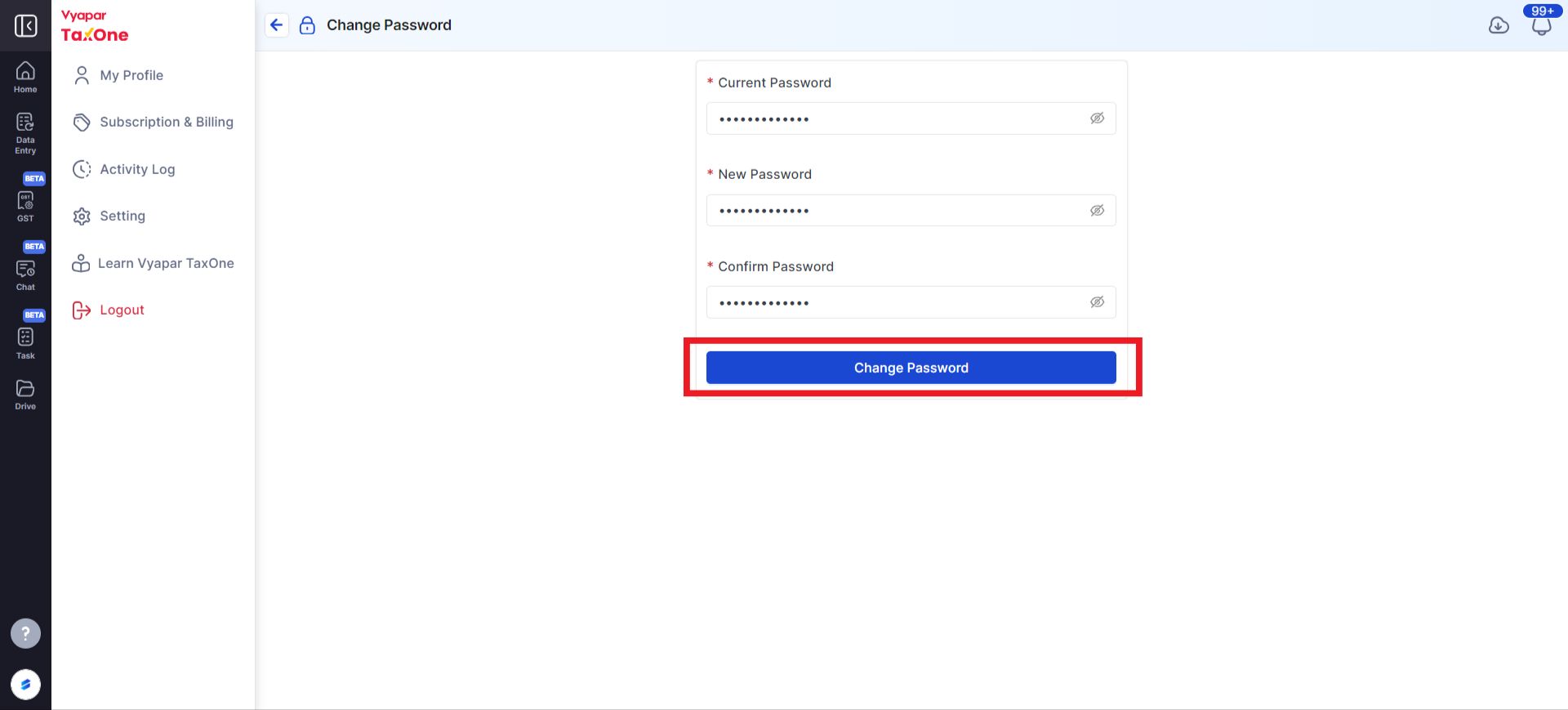
- Provide your current password for verification.
4. Confirm the New Password
- Enter your new password in the designated field and re-enter it to confirm.
5. Change Password
- Click change password button to finalize the process.
6. Password Change Successfully
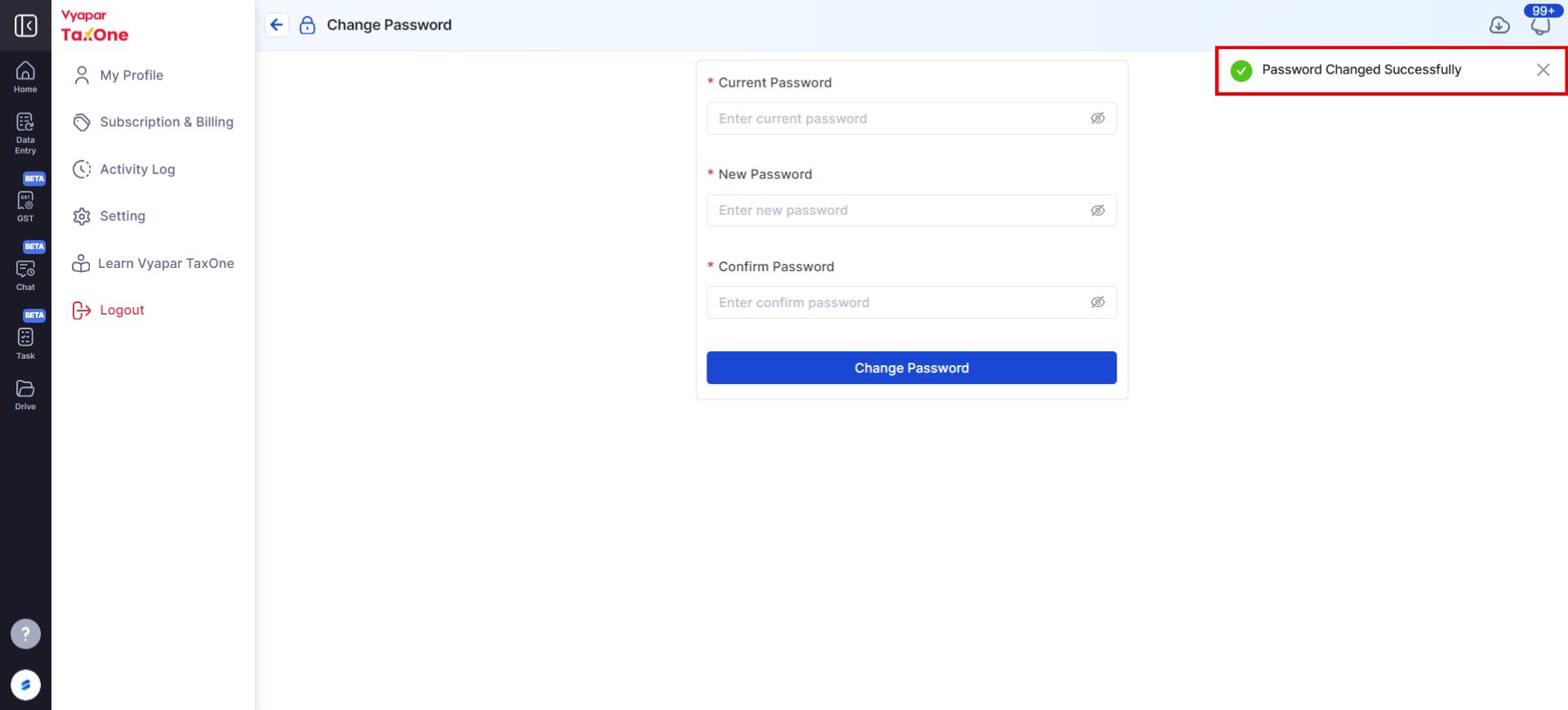
- Your password is now successfully updated
