Company is showing disconnected
Vyapar TaxOne must stay connected with Tally and the Tally company. If a split or connectivity issue shows it as disconnected, follow this guide to resolve it.
Overview
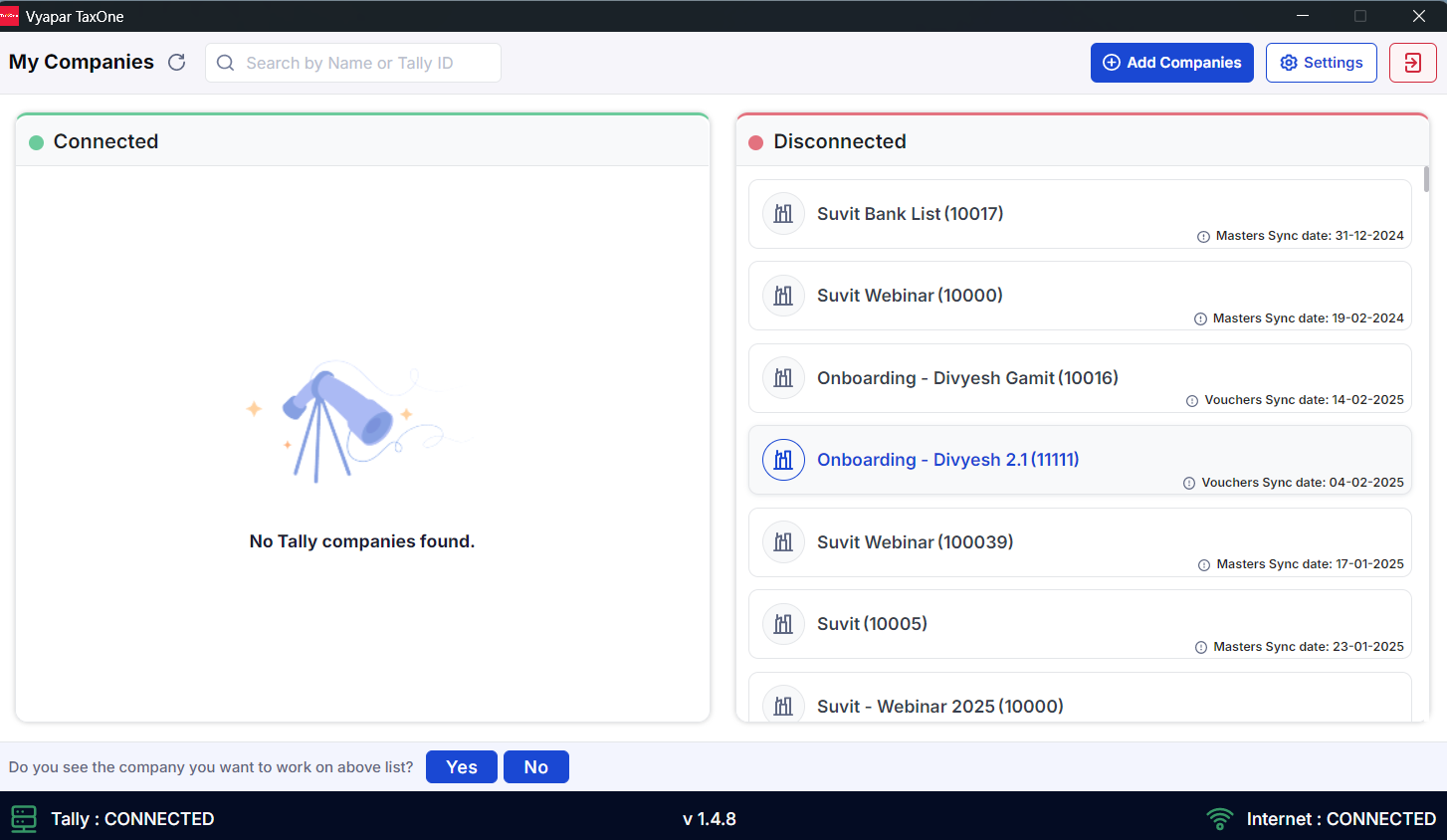
This image provides an overview of the three steps required to connect Vyapar TaxOne with Tally using the Tally Connector Application. Follow each step carefully to ensure a successful connection.
Follow three easy steps
Step 1: Open Tally and select your company
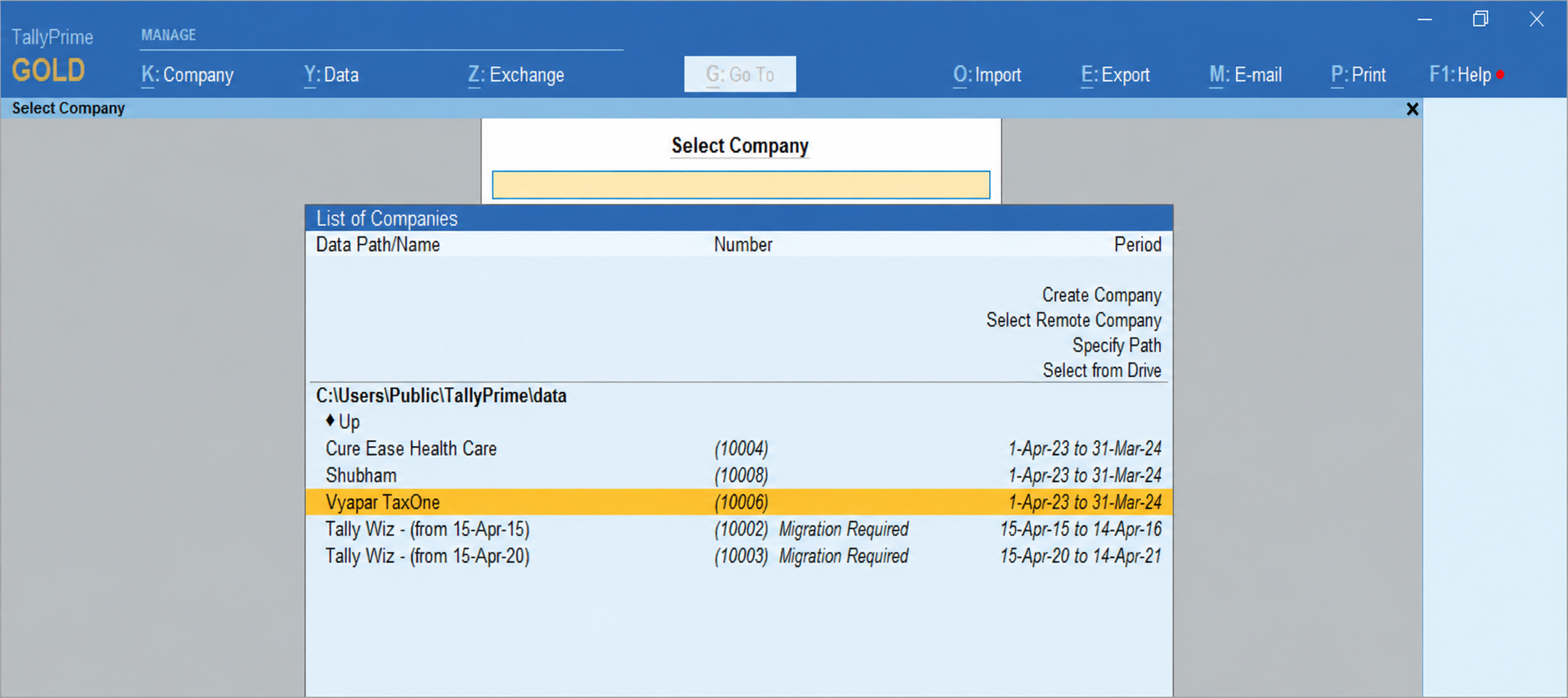
- Ensure that Tally is open and the company is selected in Tally.
Step 2: Check and update Tally port (if needed)
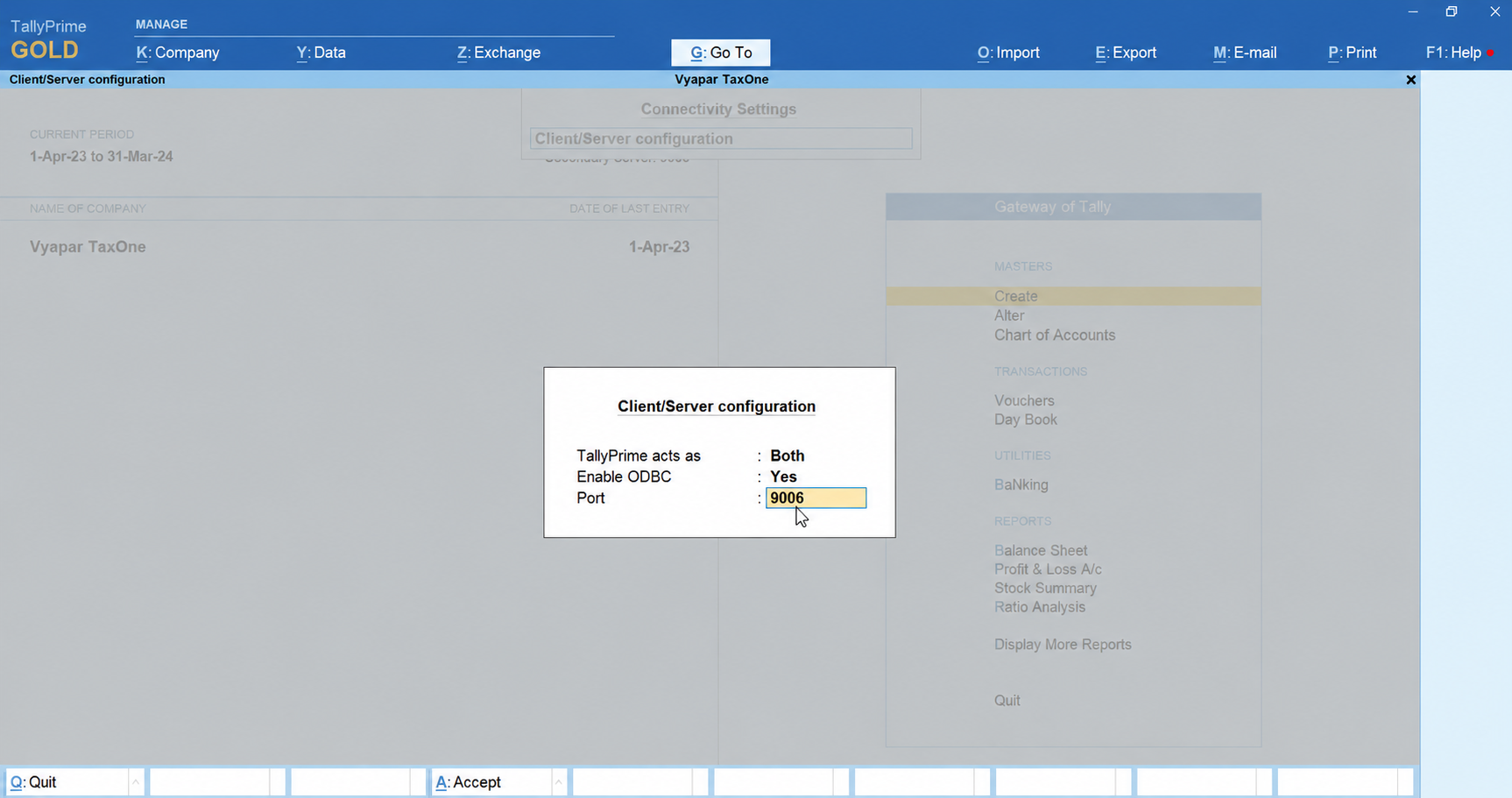
- If the company still appears as disconnected in Vyapar TaxOne, verify and update the Tally port settings.
- To check or change the Tally port, refer to the guide: Port Settings.
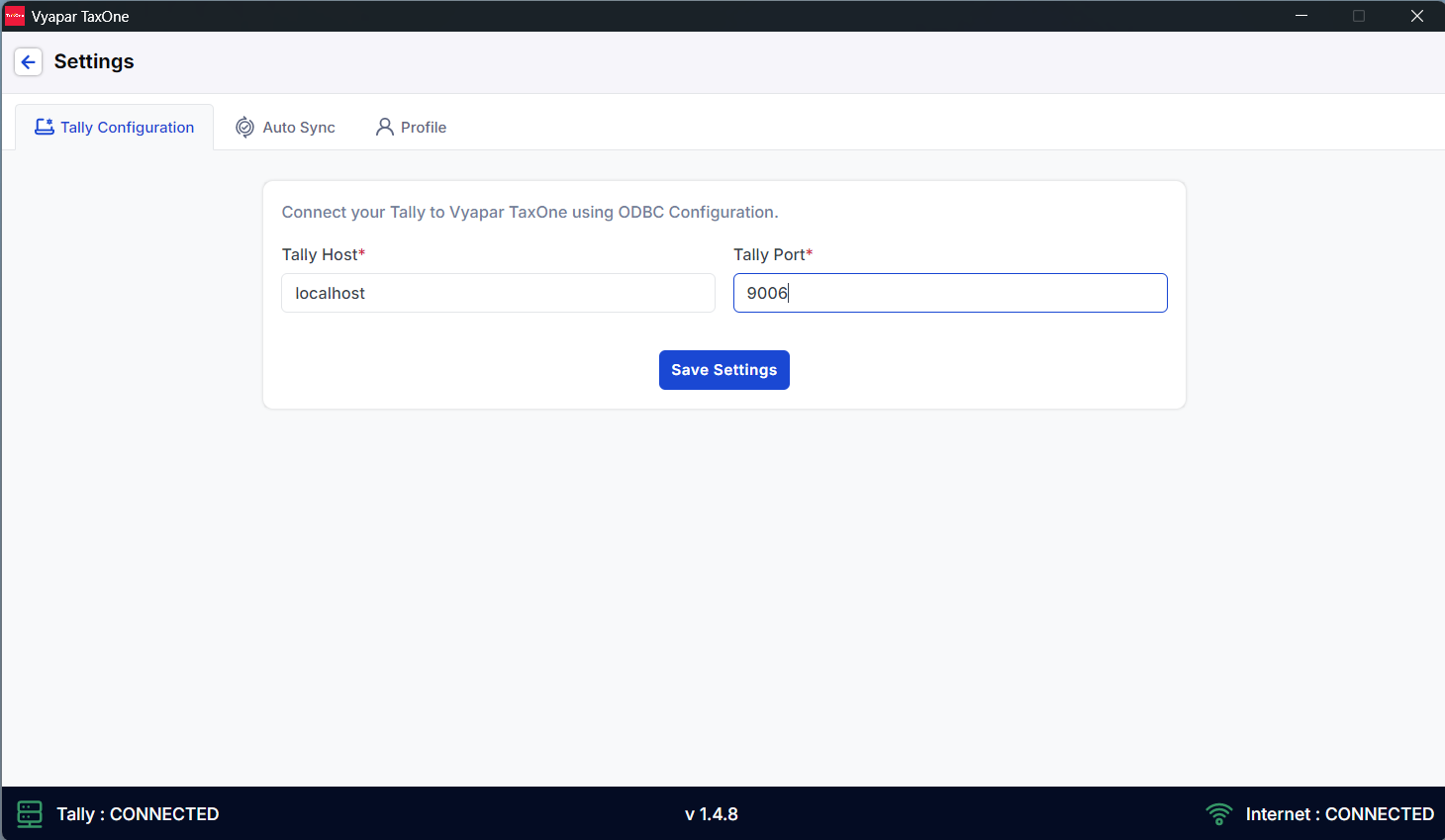
- Open the Vyapar TaxOne Desktop Tally Connector Application on your system.
- Follow the step-by-step instructions to configure the Tally port within the connector.
- Detailed configuration guide: Vyapar TaxOne Port Settings.
✍ Once all three steps are completed, your Vyapar TaxOne application will successfully connect to Tally.
