How to Enable and Enter Cost Centre in Vyapar TaxOne Banking Module
Learn to enable and manage the Cost Centre feature in Vyapar TaxOne Banking. This guide covers setup and offers manual and bulk methods for efficient data entry.
How to Enable Cost Centre in Banking Module
Make sure you have Cost Centre in Tally and Ledger sync has been done.
There are two methods to enter Cost Center in Vyapar TaxOne
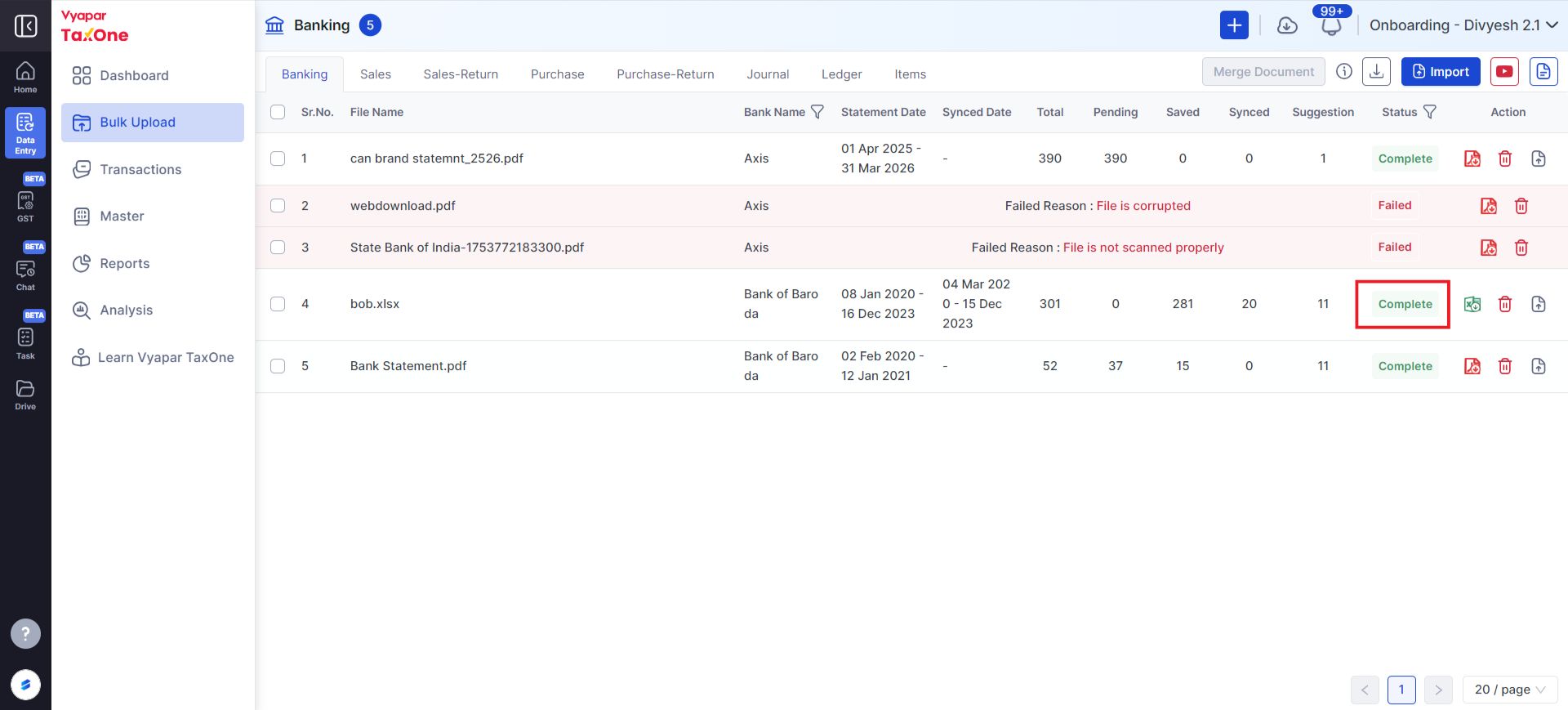
Step 1 - Open the Transaction Screen:
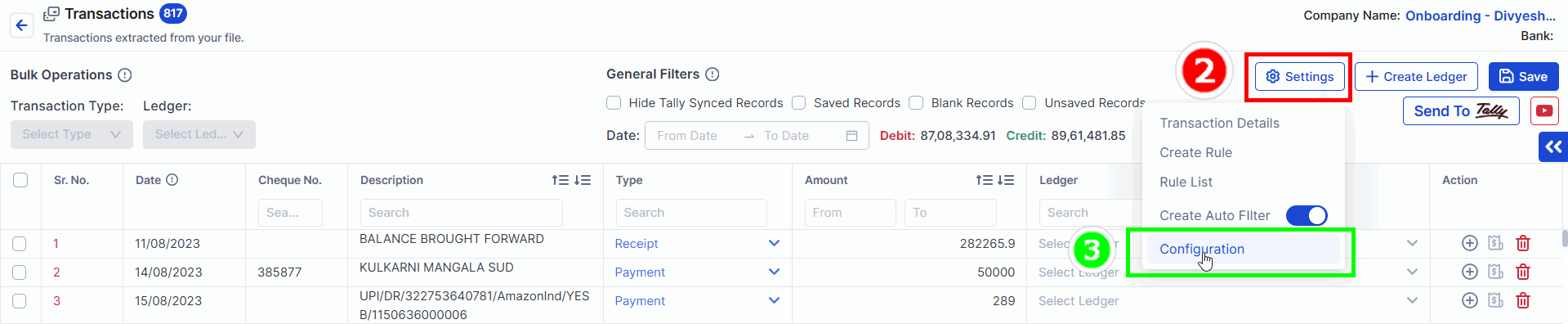
Step 2 - Go to Settings → Configurations:
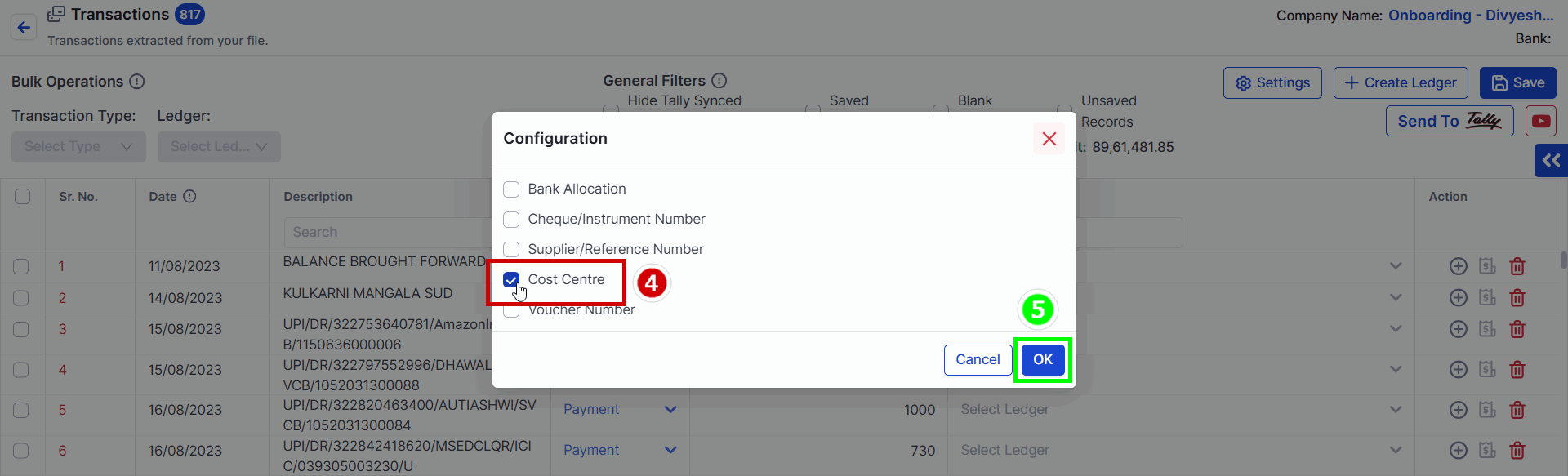
Step 3 - Enable Cost Centre:
Cost Centre
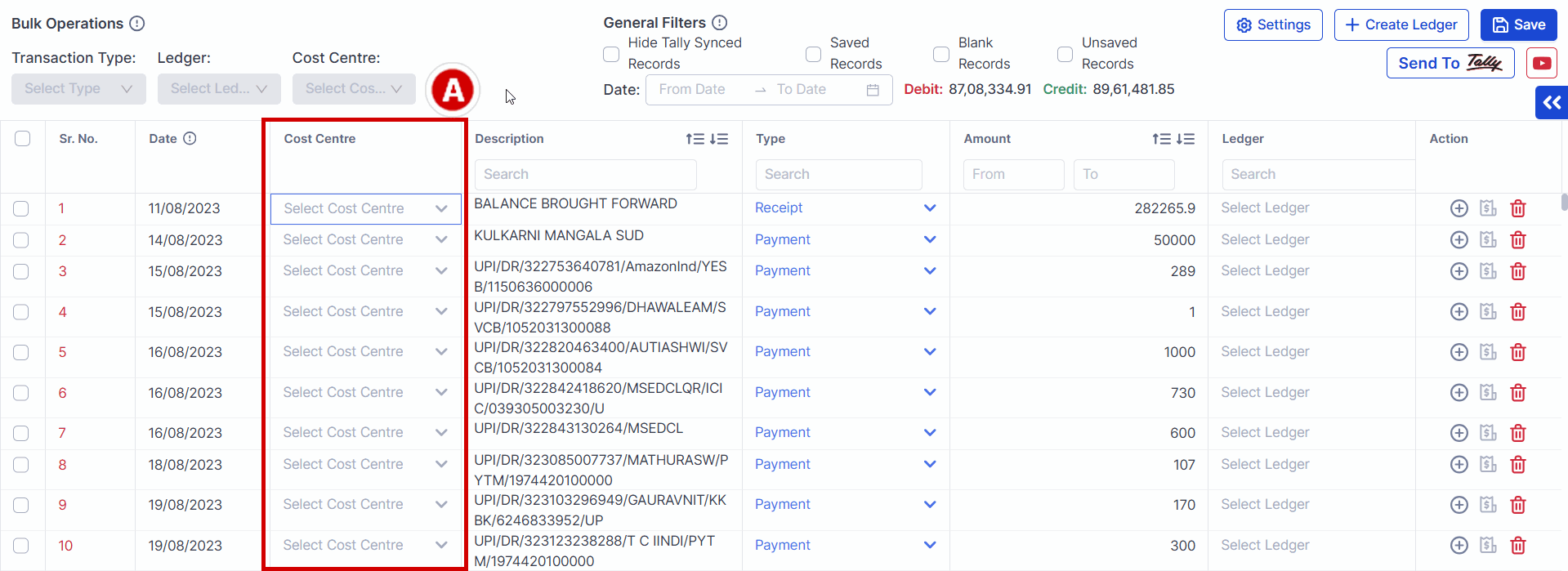
One row will be appear for Cost Centre as shown in below screen.
How to enter Cost Centre
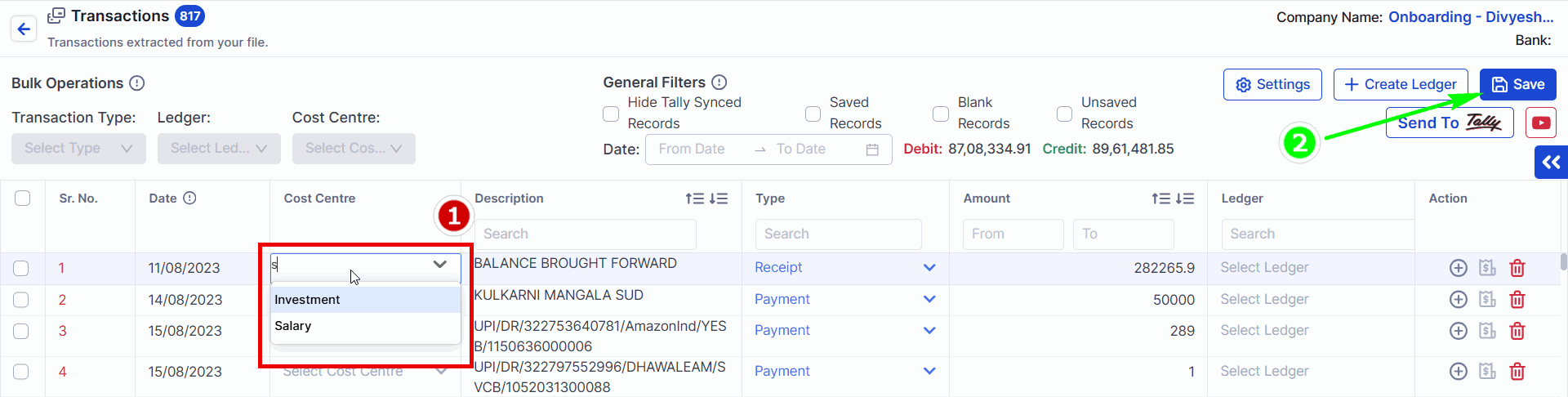
Method A - Manual Select
Click on the cell, type and select cost center one by one
After entering the data SAVE it.
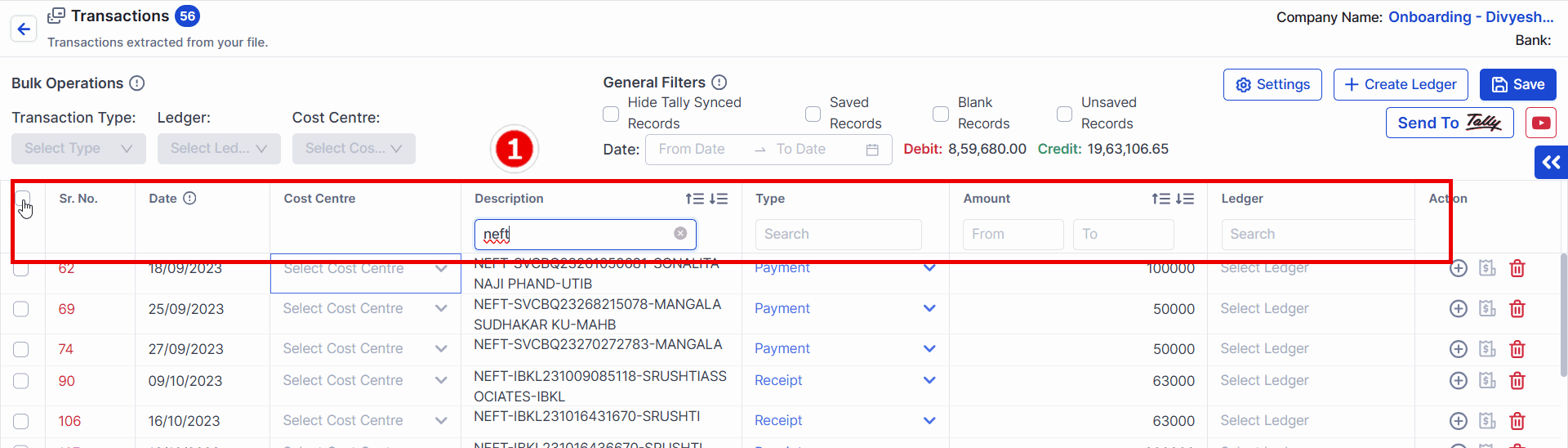
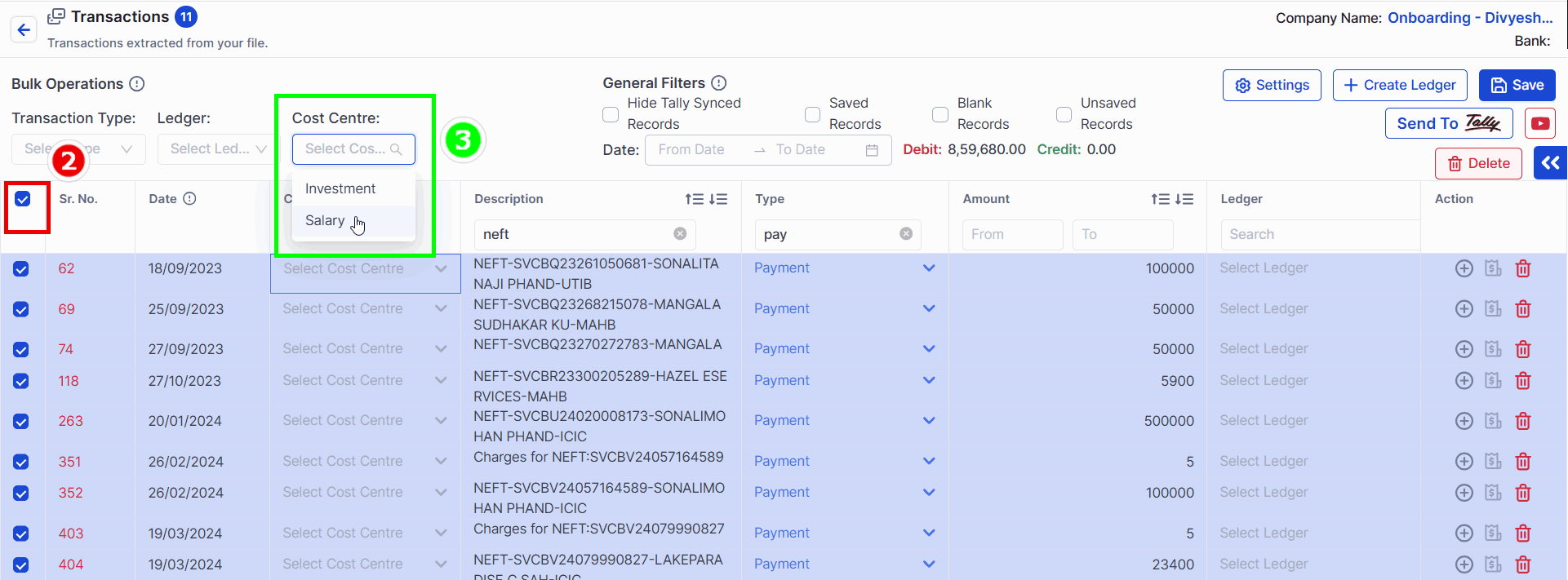
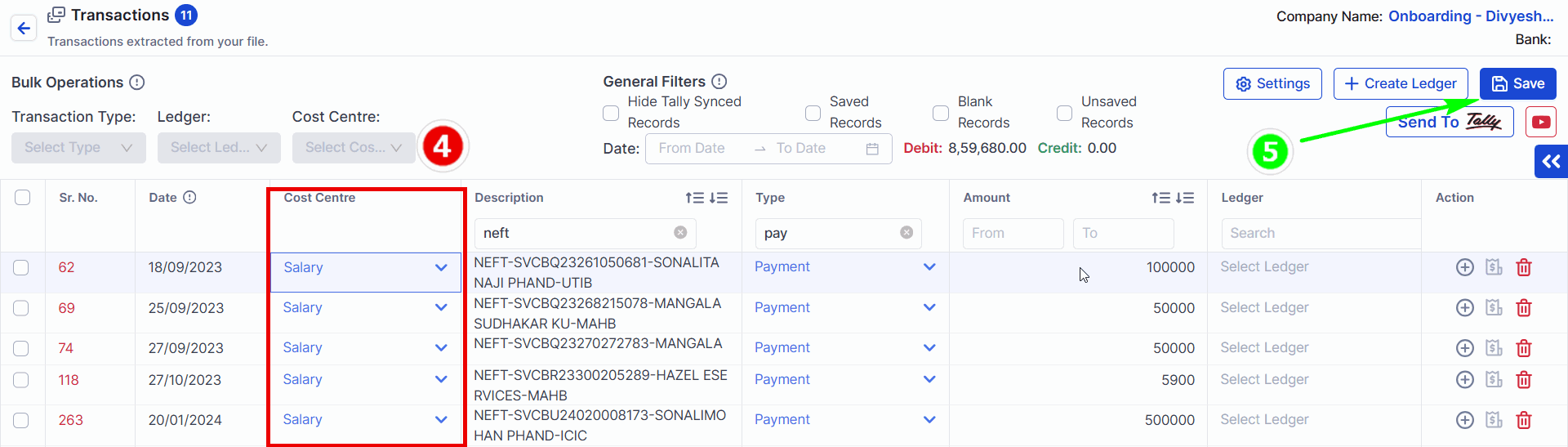
Method B - Bulk Select
Filter your data if required.
Select your entry and assign Cost Centre as shown in below image