Managing Duplicate Entries in Vyapar TaxOne Banking Module
Learn how Vyapar TaxOne flags duplicate banking entries with an orange triangle. Follow steps to view, delete, and manage them for accurate bank reconciliation.
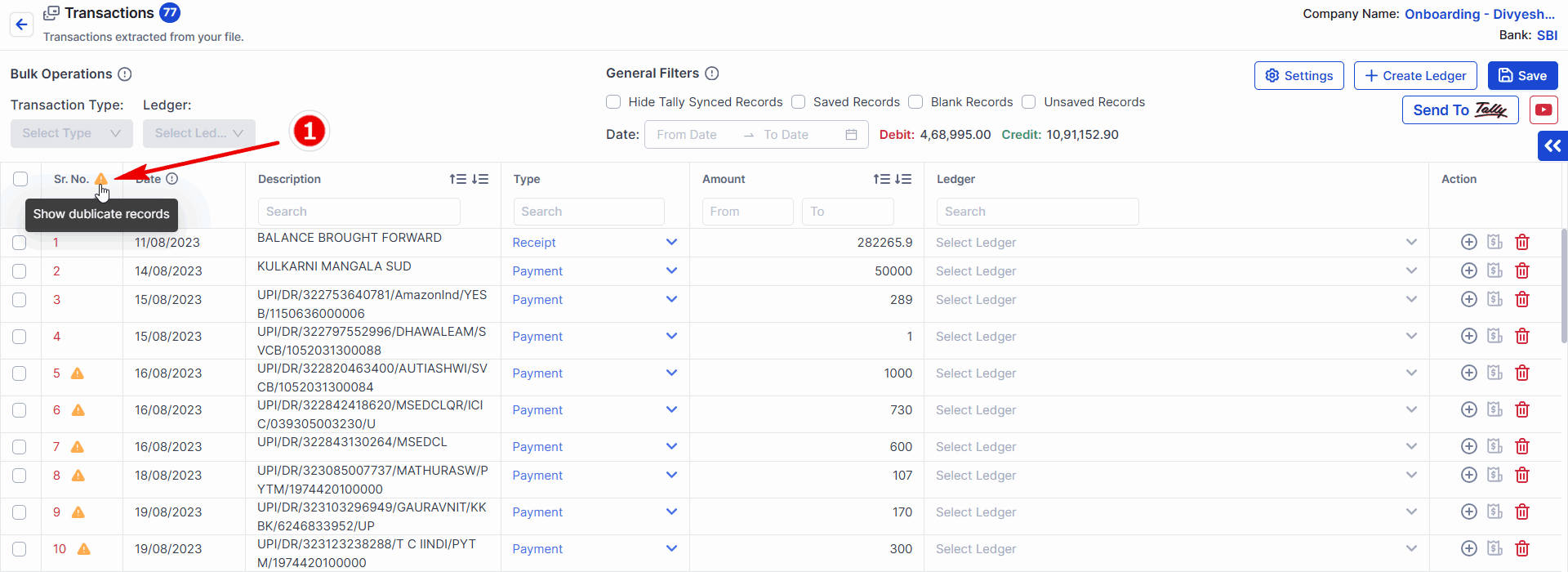
This little orange triangles in Banking screen indicates duplicate entry. Vyapar TaxOne recognizes this transaction as one you've already imported from your bank statement
Q: When duplicate entry shows?
- A : When this bank transaction has already been uploaded to Vyapar TaxOne.
Q: How do I view duplicate entries?
- A : Click the orange warning sign (or icon) to view all duplicate entries.
Q: How do I delete duplicate entries?
- A : Click the orange warning sign (or icon) to view all duplicate entries.
- 1: Select your Duplicate Entry
- 2: Click on delete button
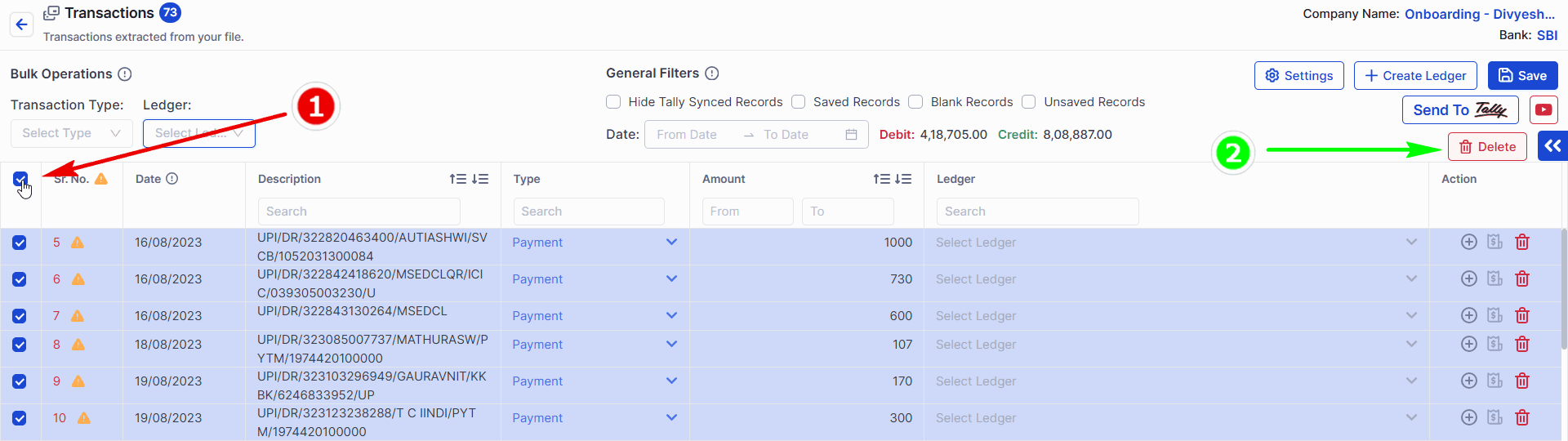
Once the entry is deleted from Vyapar TaxOne, it cannot be recovered again from Vyapar TaxOne.
Q: How to check in which document its having the same entry?
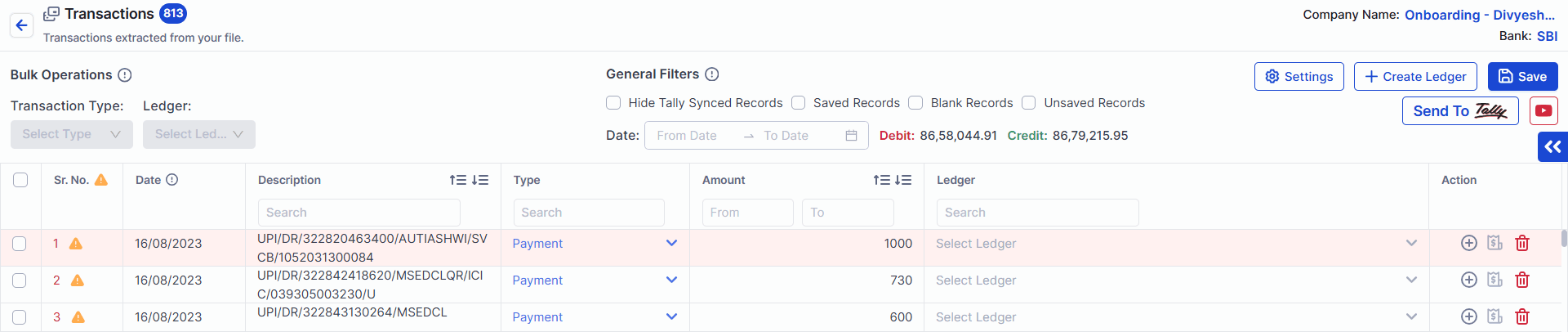
- 1 : Click the orange warning sign (or icon)
- 2: Select your Duplicate Entry as shown in above image
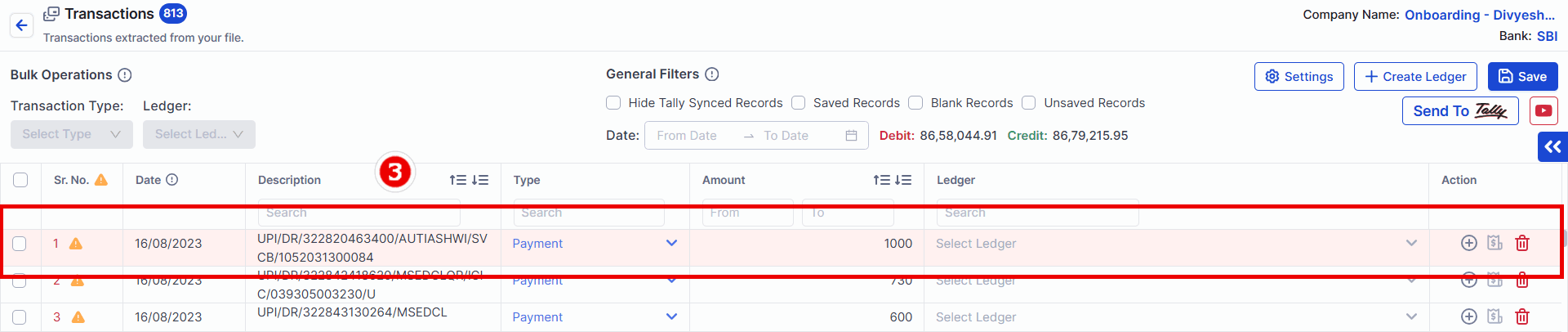
- 3: Vyapar TaxOne will divert to the other Bank Document in which the same transaction is present and Vyapar TaxOne will Highlight the transaction for the easy identification.
